Close connects with Annature so you can send documents to your leads fast and keep your CRM tidy. All your Close leads show up in Annature through a live sync, so you always have the latest details ready to go. Send envelopes with contact info pre-filled and once signed, they sync back to Close as a note for easy tracking.
The Close integration gives you a dedicated dashboard inside Annature showing all your Close leads in real time. Pick a lead, send an envelope with their details already filled in, and let Annature handle the rest. Once the document is signed, it syncs back as a note on the lead's record in Close.
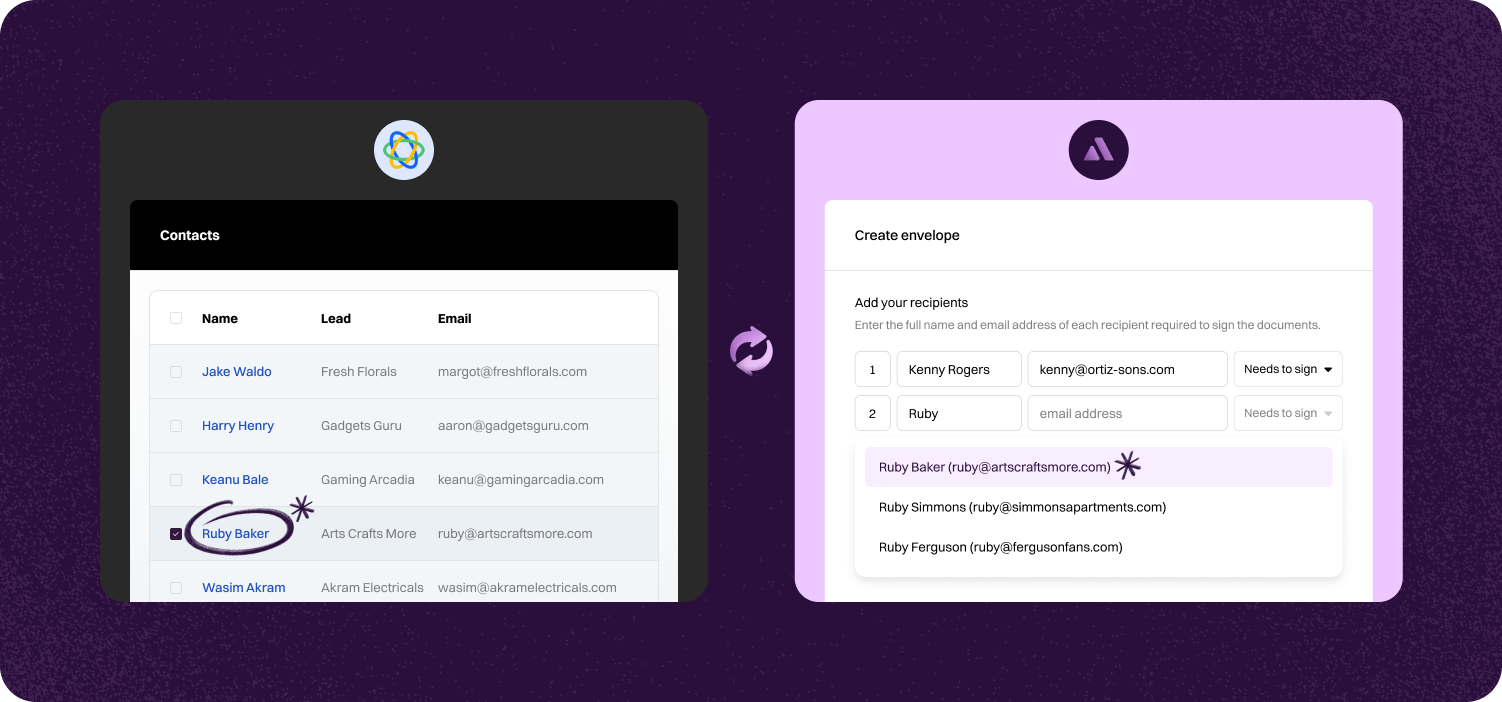

Your Close leads appear in Annature through a live sync. Pick a lead and send an envelope without retyping details.
When a document is signed, it goes back to Close as a note on the lead's record. This keeps your CRM up to date without extra admin.
Changes in Close flow into Annature as soon as they happen. You always have the latest lead details ready when you need them.
Step-by-step guide to linking account.

Go to Settings, click on Integrations. Scroll down until you see Close, then click on the Connect button.
Log in with Close CRM. Once logged in, select the Organisation from the dropdown you want Annature to access, then click Allow.


To confirm successful integration, the status of the Close integration card should be Connected.
You should now see the Close tab in your Annature dashboard.


Go to Settings > Integrations. Scroll down until you see Close, then click on the Configure button.
Enabling the integration dashboard grants you real-time access to your data, eliminating delays and ensuring accuracy for your requests. By default, the integration dashboard is shared with all accounts in your organisation. If you select a group from the dropdown, the integration dashboard will only be shared with accounts that belong to the same group. To start importing all of your Close contacts into your address book, click on Import data.

Annature integrates with Xero, Xero Practice Manager, Xplan, HubSpot, Zoho CRM, Close CRM, MYOB Practice Management, FYI, Worksorted, Mailchimp, Pinch Payments, and more. We're continually expanding our integration network.
Yes. Our integrations are designed to be straightforward, so you can connect your tools without needing IT expertise.
Yes. Our API lets developers build custom workflows and embed Annature directly into their own systems.
Yes. Annature has pre-built integrations with platforms like HubSpot, Zoho CRM, Close CRM, Xero Practice Manager, Xplan, and more. You can also use the API to build custom connections.
Schedule a free product demonstration with someone from our friendly on-shore sales and support team to learn more about Annature and our platform.
“Annature quite quickly became the first on the list to recommend to all my clients because of how well it worked for us. It looks beautiful. It’s easy to use. It scales properly on the phone.”