Xplan connects with Annature so you can send documents for signing and run Identity Verifications for your Xplan clients without leaving your workflow. Client info syncs through automatically, so there's no double handling. Signed PDFs and verification certificates go straight back into the right client record in Xplan.
The Xplan integration gives financial services firms a streamlined way to manage document signing and identity verification. Your Xplan clients appear in a dedicated dashboard inside Annature, with contact details pre-filled. Send envelopes or start Identity Verifications in a few clicks, and let signed documents and verification certificates file back to the right client automatically.
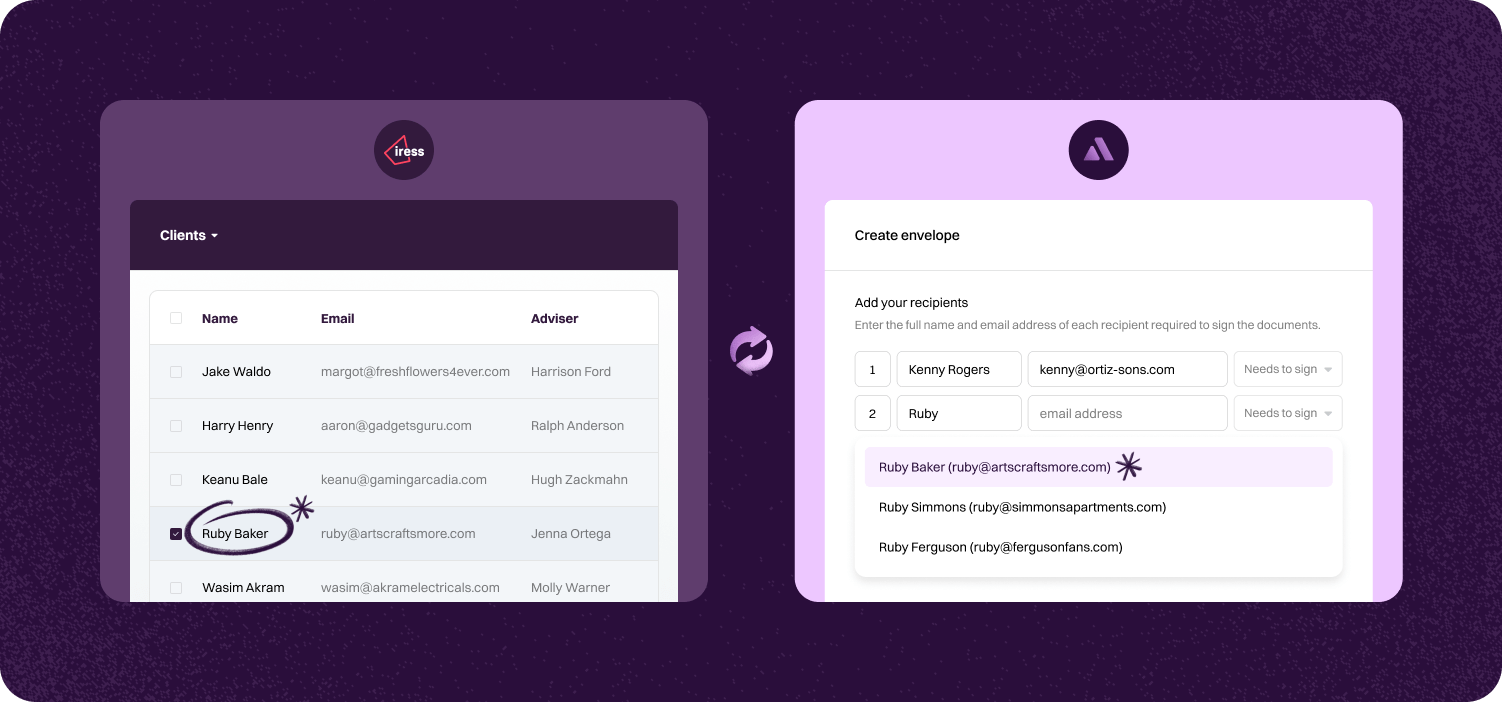

Pick your client in Xplan and send documents for signing or start an Identity Verification in a few clicks. Annature uses the details you already have in Xplan.
Signed PDFs and Identity Verification certificates sync straight back into the client's Xplan file. This keeps records tidy and saves you chasing paperwork.
Every signed document and Identity Verification has a full audit trail. Signed files and verification certificates stay in Xplan while the completion certificate for signing stays safe in Annature.
Step-by-step guide to linking account.

To connect Xplan, go to Settings and click Integrations.
Next, Click Connect under Xplan.


Enter your Xplan account's site URL. This is the web address you use to sign in to your Xplan account e.g. https://annature.xplan.iress.com.au.
After entering the URL, click on Continue and you will be redirected to your Xplan account. Log in to your account if you aren't logged in already.


Finally, you will be prompted to allow Annature access to your Xplan account. Simply click on Allow to complete the connection.
Once connected, Xplan will be added to the dashboard's left-hand menu. This is where you can access all your Xplan clients and view any envelopes or identity verifications associated with them.

Annature integrates with Xero, Xero Practice Manager, Xplan, HubSpot, Zoho CRM, Close CRM, MYOB Practice Management, FYI, Worksorted, Mailchimp, Pinch Payments, and more. We're continually expanding our integration network.
Yes. Our integrations are designed to be straightforward, so you can connect your tools without needing IT expertise.
Yes. Our API lets developers build custom workflows and embed Annature directly into their own systems.
Yes. Annature has pre-built integrations with platforms like HubSpot, Zoho CRM, Close CRM, Xero Practice Manager, Xplan, and more. You can also use the API to build custom connections.
Schedule a free product demonstration with someone from our friendly on-shore sales and support team to learn more about Annature and our platform.
“Annature quite quickly became the first on the list to recommend to all my clients because of how well it worked for us. It looks beautiful. It’s easy to use. It scales properly on the phone.”